Reading time: 6 min read
Simplifying content security and workflow initial setup in Sitecore
A PowerShell script for a head start on setting up content security and workflow in Sitecore.
Start typing to search...
A PowerShell script for a head start on setting up content security and workflow in Sitecore.
Setting up content security and workflows in Sitecore can often feel daunting, especially when starting from scratch. While Sitecore offers granular control and flexibility, most websites only need a basic setup to get started. This post provides a PowerShell script that establishes a foundational configuration for security, workflows, and roles, covering the essentials for most scenarios.
In XM Cloud, configuring workflows is particularly crucial because publishing often includes additional items resolved through references. Without workflows, draft content may be unintentionally published, leading to incomplete or inaccurate updates. A workflow is the only reliable way to ensure that only approved content is published.
To simplify role management, we organize our roles into four distinct categories: Content, Language, Workflow, and Miscellaneous.
Roles to control the access to parts in the content tree. It can be an entire site, or a section of a site.
Eg. “sitecore\Content SiteA”, “sitecore\Content News”
On multi-language websites, you can define what language an author can edit. Normally, all authors edit all languages.
Eg. “sitecore\Language en_CA”, “sitecore\Language All”
Roles to control the approval process of a page.
Eg. “sitecore\Workflow Approver”, “sitecore\Workflow Editor”
Any other role that doesn’t fall in any of the three previous categories.
Eg. “sitecore\Basic Access”, “sitecore\Can Unlock Others Items”
Users will always be members of at least one Content, Workflow, and one Language role. This approach allows composition of roles to define what different authors can do.
Examples:
sitecore\Mario
sitecore\Ana
“sitecore\Basic Access” is set into the “sitecore\Workflow” roles for convenience.
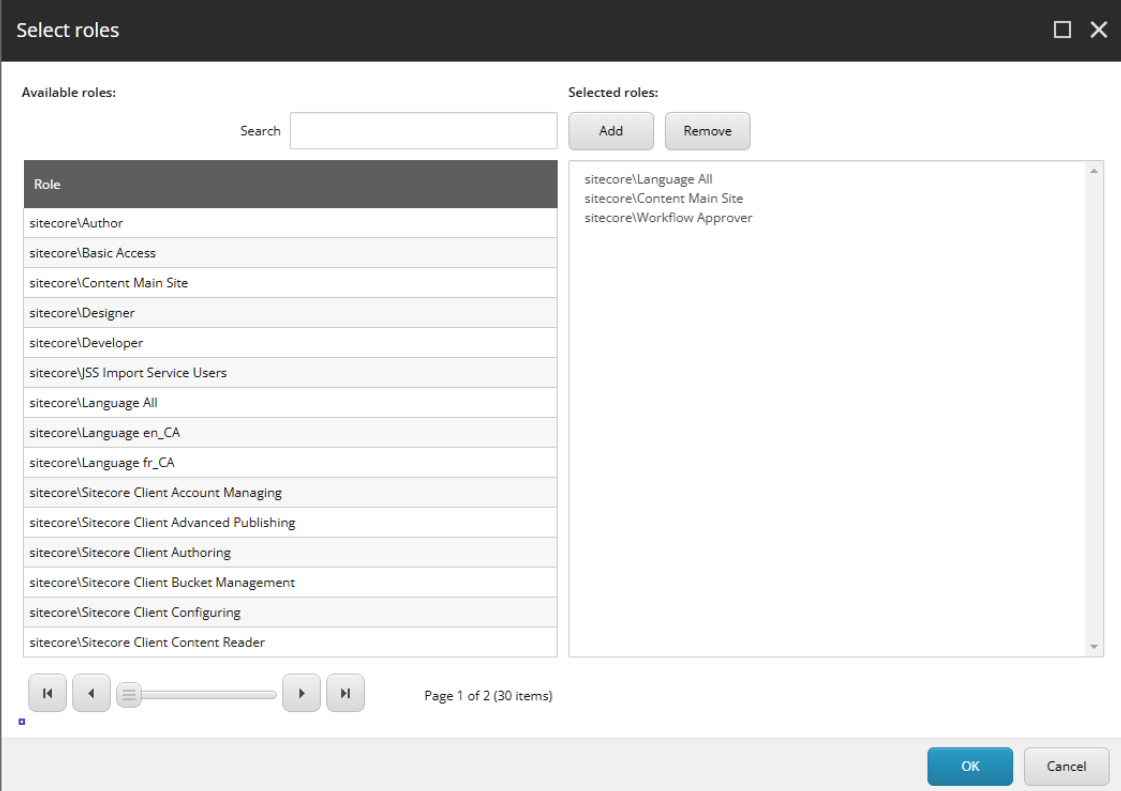
Creating a user based on all the three roles type
The PowerShell script below creates a copy of the out of box “Sample Workflow”. The sample workflow offers a simple three step process that is applicable for most organizations.
The name of the copy can be configured in the script, review all variables on the top before running it.
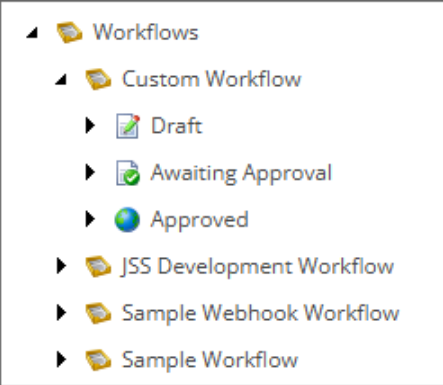
After executing the script, the last step is to add templates in workflow. The field “Default Workflow” needs to be set in the standard values of all pages and components.
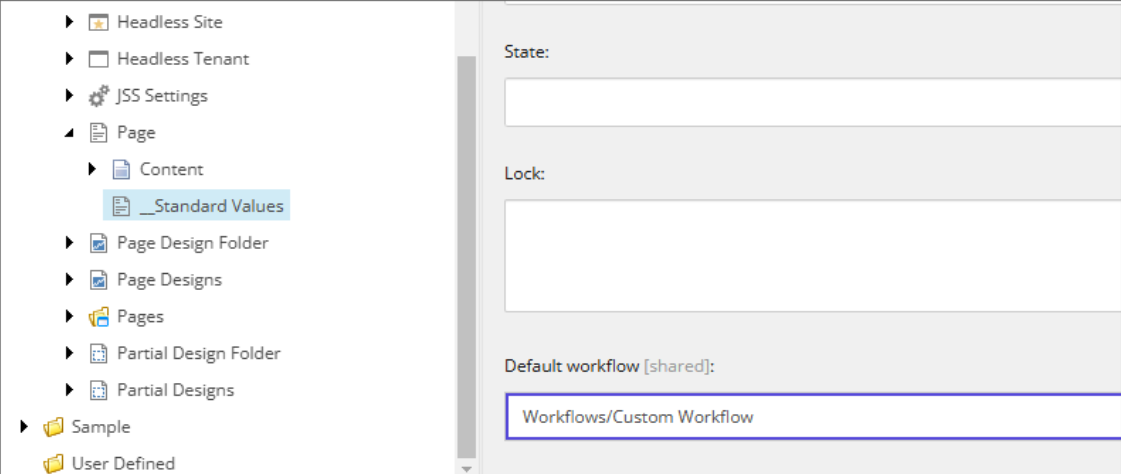
The script will not perform this action. You can create a script on your own targeting the correct items or assign manually.
Replace the variables and execute the script. This script can be executed multiple times safely.
#Variables
#************
$WebsitePath = "/sitecore/content/TENANT_NAME/SITE_NAME"
$WebsiteMediaLibraryPath = "/sitecore/media library/Project/TENANT_NAME/SITE_NAME"
$contentLanguagesList = @("en-CA", "fr-CA") #The languages defined here need to be already added in Sitecore.
$newWorkflowName = "Custom Workflow"
#************
#Test Variables
$path = "master:" + $WebsitePath
$test = Get-Item -Path $path -ErrorAction Ignore
if ($test -eq $null) {
	Write-Host "ERROR -- $WebsitePath does not exists"
	exit
}
$path = "master:" + $WebsiteMediaLibraryPath
$test = Get-Item -Path $path  -ErrorAction Ignore
if ($test -eq $null) {
	Write-Host "ERROR -- $WebsiteMediaLibraryPath does not exists"
	exit
}
###Creating Roles
Write-Host "Creating Roles"
New-Role -Identity "Basic Access" -ErrorAction Ignore
New-Role -Identity "Workflow Editor" -ErrorAction Ignore
New-Role -Identity "Workflow Approver" -ErrorAction Ignore
New-Role -Identity "Content Main Site" -ErrorAction Ignore
New-Role -Identity "Language All" -ErrorAction Ignore
foreach ($lang in $contentLanguagesList) {
	$roleName = "Language " + $lang.Replace("-", "_")
	New-Role -Identity $roleName -ErrorAction Ignore
}
###Defining roles relationships
Write-Host "Defining roles relationships"
Add-RoleMember -Identity "Sitecore Client Maintaining" -Members "Basic Access"
Add-RoleMember -Identity "Designer" -Members "Basic Access"
Add-RoleMember -Identity "Sitecore Client Translating" -Members "Basic Access"
Add-RoleMember -Identity "Author" -Members "Basic Access"
Add-RoleMember -Identity "SXA\Author" -Members "Basic Access"
Add-RoleMember -Identity "Basic Access" -Members "Workflow Editor"
Add-RoleMember -Identity "Basic Access" -Members "Workflow Approver"
foreach ($lang in $contentLanguagesList) {
	$roleName = "Language " + $lang.Replace("-", "_")
	Add-RoleMember -Identity $roleName -Members "Language All"
}
###Setting security to language items
Write-Host "Setting security to language items"
foreach ($lang in $contentLanguagesList) {
	$path = "master:/sitecore/system/Languages/" + $lang
	$item = Get-Item $path -ErrorAction Ignore
	if ($item -eq $null){
		Write-Host "Create the language items in Sitecore and run the script again"
		Write-Host "Exiting script"
		exit
	} else {
		$securityValue = "ar|sitecore\Language " + $lang.Replace("-", "_") + "|pd|+language:write|+language:read|pe|+language:write|+language:read|ar|Everyone|pd|+item:read|!*|pe|+item:read|!*|"
		$item.Editing.BeginEdit()
		$item["__Security"] = $securityValue
		$item.Editing.EndEdit()
	}
}
###Creating Custom Workflow
Write-Host "Creating Custom Workflow"
$sourcePath = "master:/sitecore/system/Workflows/Sample Workflow"
$newWorkflow = "master:/sitecore/system/Workflows/" + $newWorkflowName
$sourceItem = Get-Item -Path $sourcePath -ErrorAction Ignore
$targetItem = Get-Item -Path $newWorkflow -ErrorAction Ignore
if ($sourceItem -ne $null -AND $targetItem -eq $null) {
	Copy-Item -Path $sourcePath -Destination $newWorkflow -Recurse
}
###Create Action to Approve Datasources Along Pages
Write-Host "Create Action to Approve Datasources Along Pages"
$path = $newWorkflow + "/Awaiting Approval/Approve/Datasource Workflow Action"
$test = Get-Item -Path $path -ErrorAction Ignore
if ($test -eq $null) {
	$path = $newWorkflow + "/Approved"
	$approveStateItem = Get-Item $path
	$path = $newWorkflow + "/Awaiting Approval/Approve"
	$action = New-Item -Path $path -Name "Datasource Workflow Action" -ItemType "{DEF0AA0D-3446-41AE-B307-EC7BA429CE50}"
	$action.Editing.BeginEdit()
	$action["Command item"] = $approveStateItem.ID
	$action.Editing.EndEdit()
}
###Defining access rights for content
Write-Host "Defining access rights for content"
$itemAndDescendantsAccess = "ar|sitecore\Content Main Site|pd|+item:delete|+item:write|+item:read|^*|+item:rename|+item:create|pe|+item:write|+item:read|^*|+item:create|ar|Everyone|pd|+item:read|!*|pe|+item:read|!*|"
$descendantsAccess = "ar|sitecore\Content Main Site|pd|+item:delete|+item:write|+item:read|+item:rename|+item:create|pe|+item:read|+item:create|ar|Everyone|pd|+item:read|!*|pe|+item:read|!*|"
###Setting Access Rights to Items
Write-Host "Setting Access Rights to Items"
#home page
$path = "master:" + $WebsitePath + "/Home"
$item = Get-Item -Path $path
$item.Editing.BeginEdit()
$item["__Security"] = $itemAndDescendantsAccess
$item.Editing.EndEdit()
#data folder
$path = "master:" + $WebsitePath + "/Data"
$item = Get-Item -Path $path
$item.Editing.BeginEdit()
$item["__Security"] = $descendantsAccess
$item.Editing.EndEdit()
#partial designs
$path = "master:" + $WebsitePath + "/Presentation/Partial Designs"
$item = Get-Item -Path $path
$item.Editing.BeginEdit()
$item["__Security"] = $descendantsAccess
$item.Editing.EndEdit()
#partial designs placeholders
$path = "master:" + $WebsitePath + "/Presentation/Placeholder Settings/Partial Design"
$item = Get-Item -Path $path
$item.Editing.BeginEdit()
$item["__Security"] = $descendantsAccess
$item.Editing.EndEdit()
#site media library folder
$path = "master:" + $WebsiteMediaLibraryPath
$item = Get-Item -Path $path
$item.Editing.BeginEdit()
$item["__Security"] = $descendantsAccess
$item.Editing.EndEdit()
###Setting Access Rights in Workflow
Write-Host "Setting Access Rights in Workflow"
$path = $newWorkflow + "/Draft"
$item = Get-Item -Path $path
$item.Editing.BeginEdit()
$item["__Security"] = "ar|sitecore\Workflow Approver|pe|+workflowState:delete|+workflowState:write|+workflowCommand:execute|pd|+workflowCommand:execute|+workflowState:write|+workflowState:delete|ar|sitecore\Workflow Editor|pe|+workflowState:delete|+workflowState:write|+workflowCommand:execute|pd|+workflowState:delete|+workflowState:write|+workflowCommand:execute|"
$item.Editing.EndEdit()
$path = $newWorkflow + "/Draft/Submit"
$item = Get-Item -Path $path
$item.Editing.BeginEdit()
$item["__Security"] = "ar|Everyone|pe|!*|pd|!*|ar|sitecore\Workflow Approver|pe|+workflowCommand:execute|+item:read|^*|pd|+workflowCommand:execute|+item:read|^*|ar|sitecore\Workflow Editor|pe|+workflowCommand:execute|+item:read|^*|pd|+workflowCommand:execute|+item:read|^*|"
$item.Editing.EndEdit()
$path = $newWorkflow + "/Awaiting Approval"
$item = Get-Item -Path $path
$item.Editing.BeginEdit()
$item["__Security"] = "ar|sitecore\Workflow Approver|pe|+workflowCommand:execute|+workflowState:write|+workflowState:delete|pd|+workflowState:delete|+workflowCommand:execute|+workflowState:write|"
$item.Editing.EndEdit()
$path = $newWorkflow + "/Approved"
$item = Get-Item -Path $path
$item.Editing.BeginEdit()
$item["__Security"] = "ar|sitecore\Workflow Approver|pe|+workflowCommand:execute|+workflowState:write|+workflowState:delete|pd|+workflowCommand:execute|+workflowState:write|+workflowState:delete|ar|sitecore\Workflow Editor|pe|+workflowState:delete|+workflowCommand:execute|+workflowState:write|pd|+workflowCommand:execute|+workflowState:write|+workflowState:delete|"
$item.Editing.EndEdit()
### Fix issue in Sitecore allowing Data folder creation
#/sitecore/system/Settings/Foundation/Experience Accelerator/Local Datasources/Virtual Page Data/__Standard Values
$dataFolder = Get-Item -Path "master:" -ID "{9700DC24-8969-4638-ACC3-34D54335829E}"
$ar = "ar|sitecore\Basic Access|pe|+item:create|"
if ($dataFolder["__Security"].IndexOf($ar) -eq -1) {
  $dataFolder.Editing.BeginEdit()
  $dataFolder["__Security"] = $dataFolder["__Security"] + $ar
  $dataFolder.Editing.EndEdit()
}
### Message to assign Default Workflow.
$path = "master:/sitecore/system/Workflows/" + $newWorkflowName
$wfItem = Get-Item -Path $path
Write-Host "-------------------------------------------"
Write-Host "To finish setting up, assign the '$newWorkflowName' to all your pages and all components." -ForegroundColor Green
Write-Host "Assign in Standard values, field 'Default Workflow'  -  $newWorkflowName ID: " $wfItem.ID  -ForegroundColor Green
Write-Host "-------------------------------------------"