Reading time: 3 min read
Resolving ‘ERR_SSL_KEY_USAGE_INCOMPATIBLE’ Error in Sitecore
Experiencing trouble with your Sitecore installation and facing the 'ERR_SSL_KEY_USAGE_INCOMPATIBLE' error? Learn a quick and easy way to fix it.
Start typing to search...
Installation of a Sitecore instance has never been this straightforward before, a few clicks here and there using their GUI and BAM, you’ll have a vanilla Sitecore instance up and running.
However, upon clicking Launch Sitecore, you may face an error for ERR_SSL_KEY_USAGE_INCOMPATIBLE. In this blog post, we’ll go through on how to fix that.
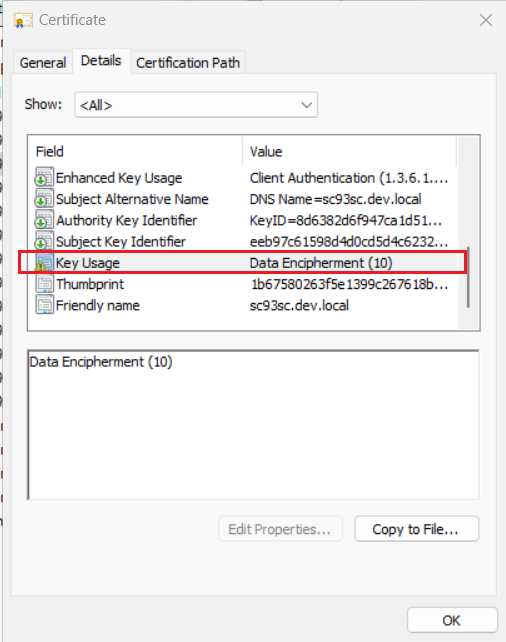
This error would most likely happen if you’re trying to install your Sitecore on Windows 11. Windows 11 added support for TLS/SSL 1.3 protocol so when Sitecore uses TLS/SSL 1.2 the protocols are mismatched and you’ll see the error. Moreover, Google released an update for Chrome (117 and up) which mandates the use of Key Usage for any RSA certificates. Sitecore’s SIA installer uses RSA for its certificate generation and sets the Key Usage value as Data Encipherment which will also generate the same error. In order to resolve the error, we’ll first modify IIS so it disables TLS/SSL 1.3 and then create a new self-signed certificate with Key Usage as Digital Signature.

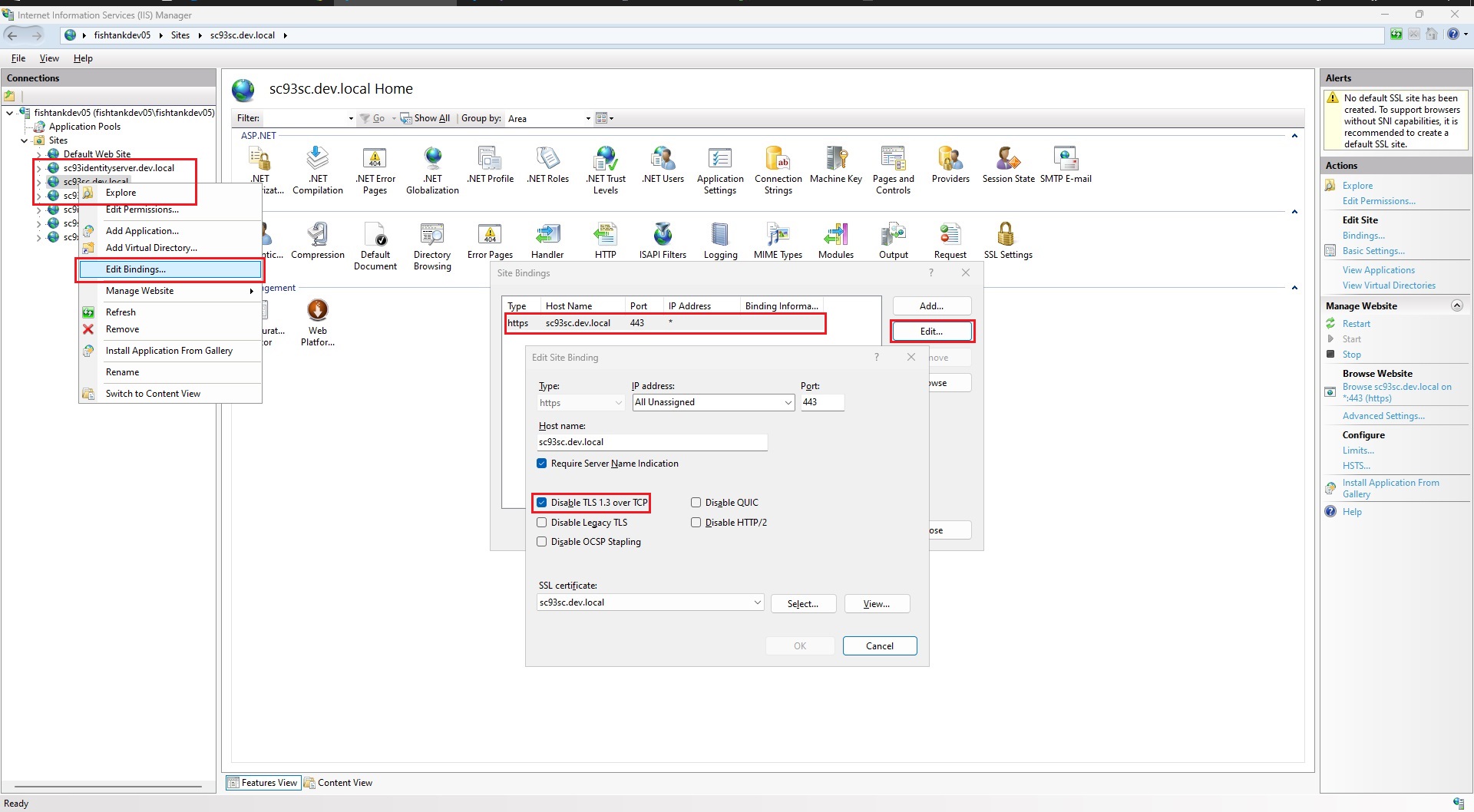
Edit Bindings.Edit.Disable TLS 1.3 over TCP option.Note: You’ll have to do this for all sites, including Identity and Xconnect, if it's an XP installation.
Open PowerShell as administrator and paste the following. Make sure to give a FriendlyName that is different than what is being used for your current certificate.DnsName should be same as your local website and change the CertStoreLocation as you like.
New-SelfSignedCertificate -FriendlyName localhost.v2 -DnsName localhost -CertStoreLocation C:\certificates -KeyUsage DigitalSignature
Start and type Manage computer certificates.Personal and then Certificates .Trusted Root Certification Authorities and right click on Certificates and click Paste.Follow steps 1 through 3 in Modify IIS section and open Edit Site Binding dialog. Once you’re there simply select the new certificate under SSL Certificate dropdown. Don’t forget to stop and start your IIS to reflect your changes.
That’s all, folks! We discussed a quick and easy way to fix the ERR_SSL_KEY_USAGE_INCOMPATIBLE error but check out our other blogs if you’re facing a SSL provider error or Solr errors when you are installing Sitecore. Also, you can read the release notes from Google about enforcing key usage extension for RSA Certificates (search for key usage extension for RSA).
Happy decoding!