The XM Cloud Forms Builder is a powerful tool for collecting user information directly on your Sitecore website.
Webhooks are a key feature that automatically sends form data to a specified URL or other systems in real time. They
are a powerful feature that allows developers and marketers to seamlessly integrate Sitecore XM Cloud Forms with
external systems and third-party services. Some practical applications include:
- Data Transfer: When a user submits a form on a Sitecore-powered site, the configured webhook
immediately sends the data to the specified URL, facilitating instant data usage or processing in another
system.
- Workflow Automation: By integrating with platforms like Sitecore Connect or Zapier, actions
such as updating customer relationship management (CRM) systems, sending emails, or even triggering custom
scripts can be automated based on form submissions.
There are two ways to access your Sitecore Webhooks in XM Cloud Forms:
- The Forms Editor
- The Webhooks tab
Sitecore's form editor allows users to directly edit and manage webhook settings. This centralizes control,
making it easier to handle form-specific configurations.
The Webhooks Tab
Here’s two quick steps on how to access the dedicated webhooks management tab in the XM Cluod Forms dashboard.
It
provides a global overview of all your webhooks, to make the task of tracking and modifying them simple.
-
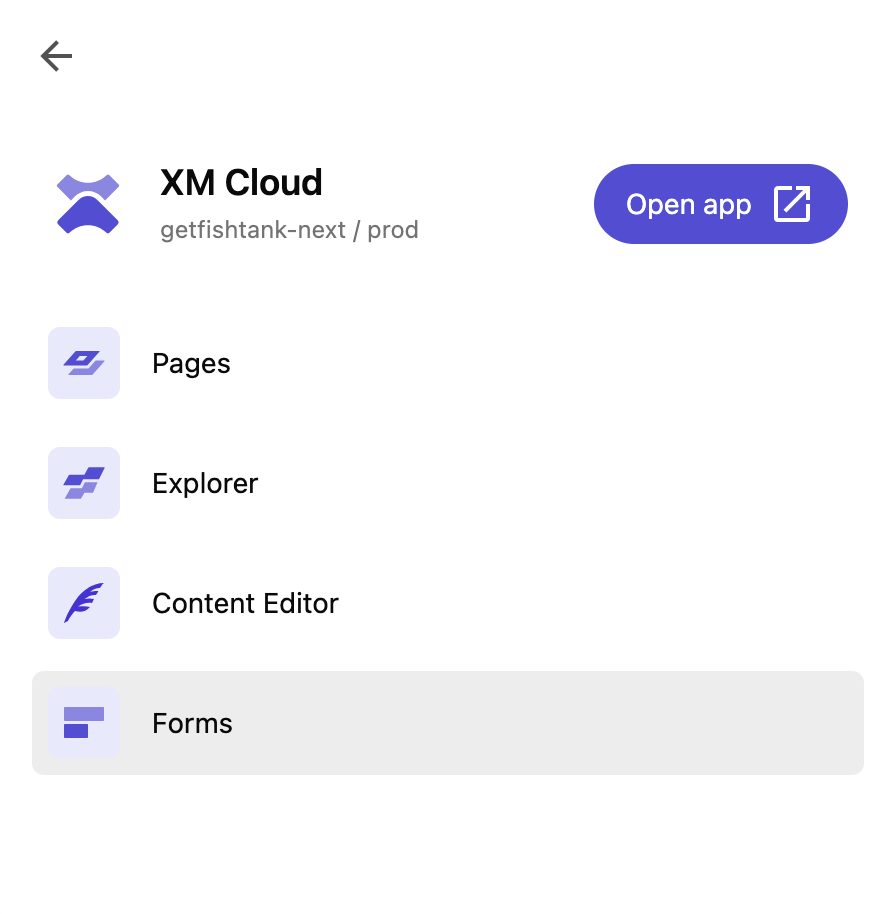
From the Sitecore Cloud portal, select the XM Cloud instance and click Forms.
-
In Sitecore XM Cloud Forms, navigate to the Webhooks tab in the top menu. Click
Add Webhook in the top right corner.

In Sitecore XM Cloud Forms, managing webhook authentication is both flexible and secure, catering to diverse security
requirements. When setting up webhooks, you have the ability to edit or delete them as your needs change; however,
to prevent disruption in your operations, any webhooks that are actively in use are safeguarded against deletion.
This ensures that your workflows continue smoothly without unintended interruptions. Most importantly, selecting the
right authentication method is crucial for the secure transfer of data. Sitecore offers a variety of authentication
options, allowing you to choose the most suitable one based on the specific security needs of your application,
ensuring that your data remains protected at all times.
Here is an overview of the various authentication types available for webhooks in Sitecore XM Cloud Forms, detailing
how each works, their setup requirements, and their respective advantages.
| Authentication Type |
Description |
Setup Requirements |
How It Works |
Advantages |
| OAuth2 (Client Credentials Flow) |
Every request requires a valid JSON Web Token (JWT) from an identity provider. |
- CLient ID
- Client secret
- Authorization end point URL
|
Uses a secure token (JWT) to authenticate requests. The token verifies the request comes from a trusted
source and can be reused until it expires. On expiration, a new token is issued after re-authentication.
|
Highly secure, allows token reuse until expiration.
|
|
Basic Authentication
|
Authenticate the caller on each request by providing credentials in the Authorization Header.
|
|
Adds your username and password to the request header each time you send data.
|
Simple to implement; less secure than OAuth2 as it transmits credentials with each request.
|
|
API Key
|
A static predefined string content is added on each request during the push of input data.
|
- Header name
- API key value
|
A static key (a long string of characters) is sent with each request to verify its authenticity.
|
Easy to use and more secure than basic authentication; less flexible than OAuth2.
|
|
No Authentication (Not Recommended)
|
No credentials needed to send the end user’s input data.
|
None
|
No credentials are required to send data.
|
Exposes your webhook to potential misuse as anyone can send data to it; not recommended.
|
To create a new webhook, users specify details such as the authentication type (OAuth 2, Basic, API key, or no
authentication), the webhook name, and the destination URL. These settings define how secure the connection is and
where the data should be sent.
-
Navigate to the Webhooks page in Sitecore XM Cloud Forms and click Add Webhook in
the top right corner.

-
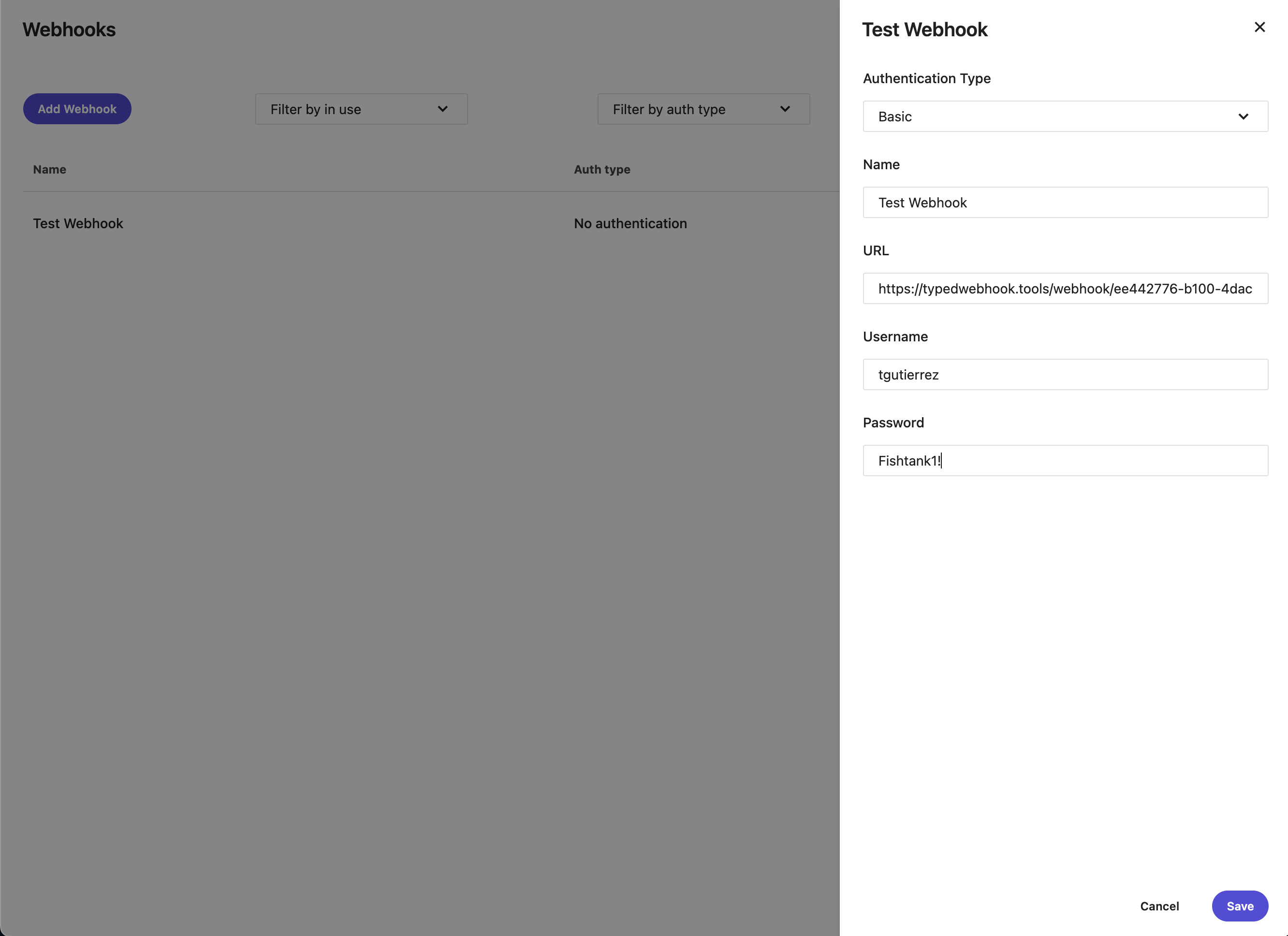
On the Test Webhook page, you can select one of the following authentication types we outlined
earlier in this blog. In this example, we selected the Basic Authentication Type, named our
webhook, included credentials, and used this tool to generate a
webhook testing URL. Once your webhook is configured, click Save.
-
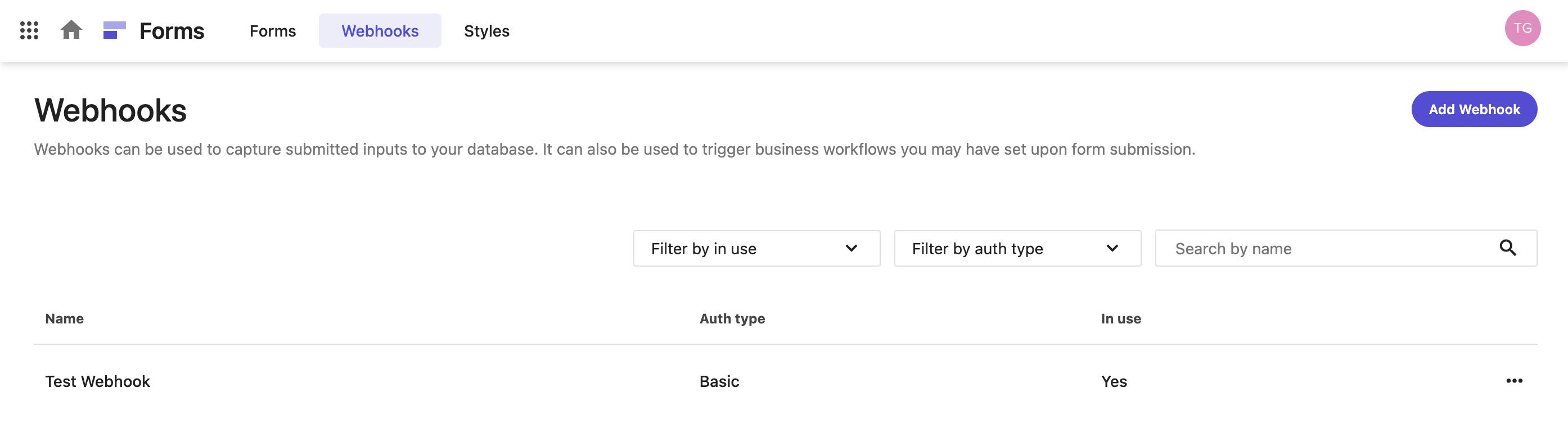
Once our new webhook is configured, it will appear in the Webhooks list. This is where you can manage all of
your webhooks going forward.
Before activating a form, it’s crucial to test the webhook to ensure that it correctly forwards the data as
intended.
This involves simulating a form submission and verifying both the data payload and the communication headers.
Our newly created webhook will be needed to connected to a Sitecore XM Cloud Form and tested. Follow these
instructions to test your webhook:
-
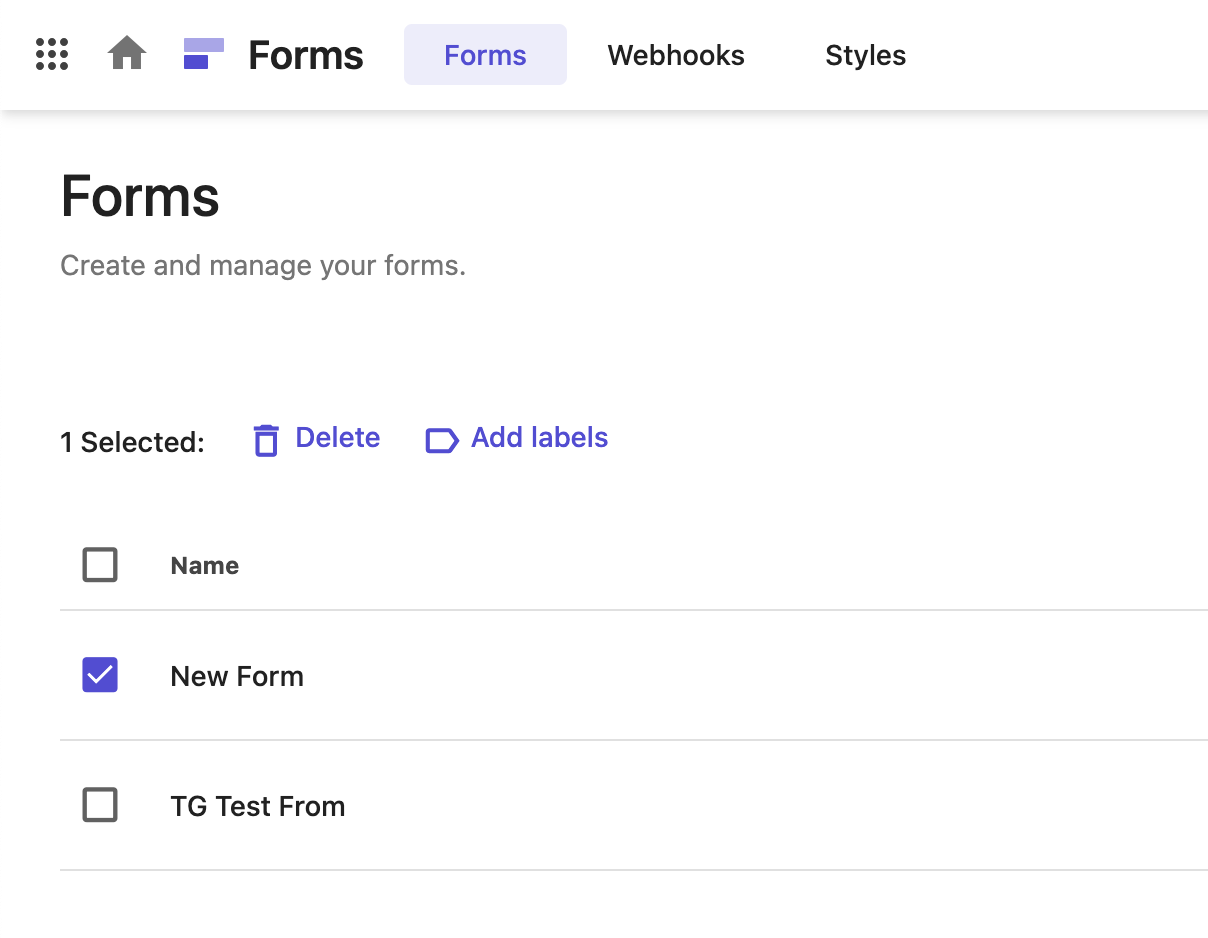
Select the form you want to test your webhook on.
-
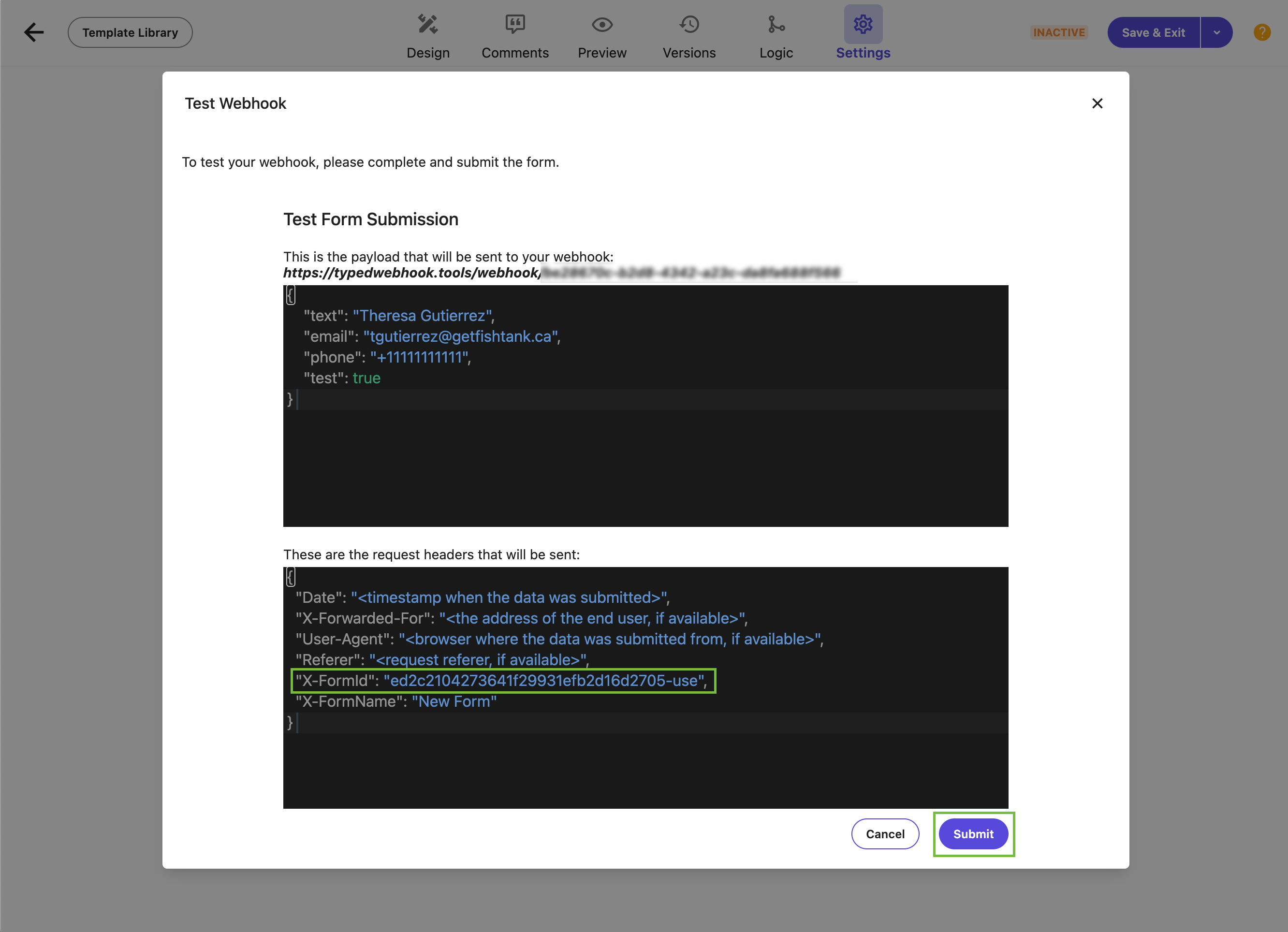
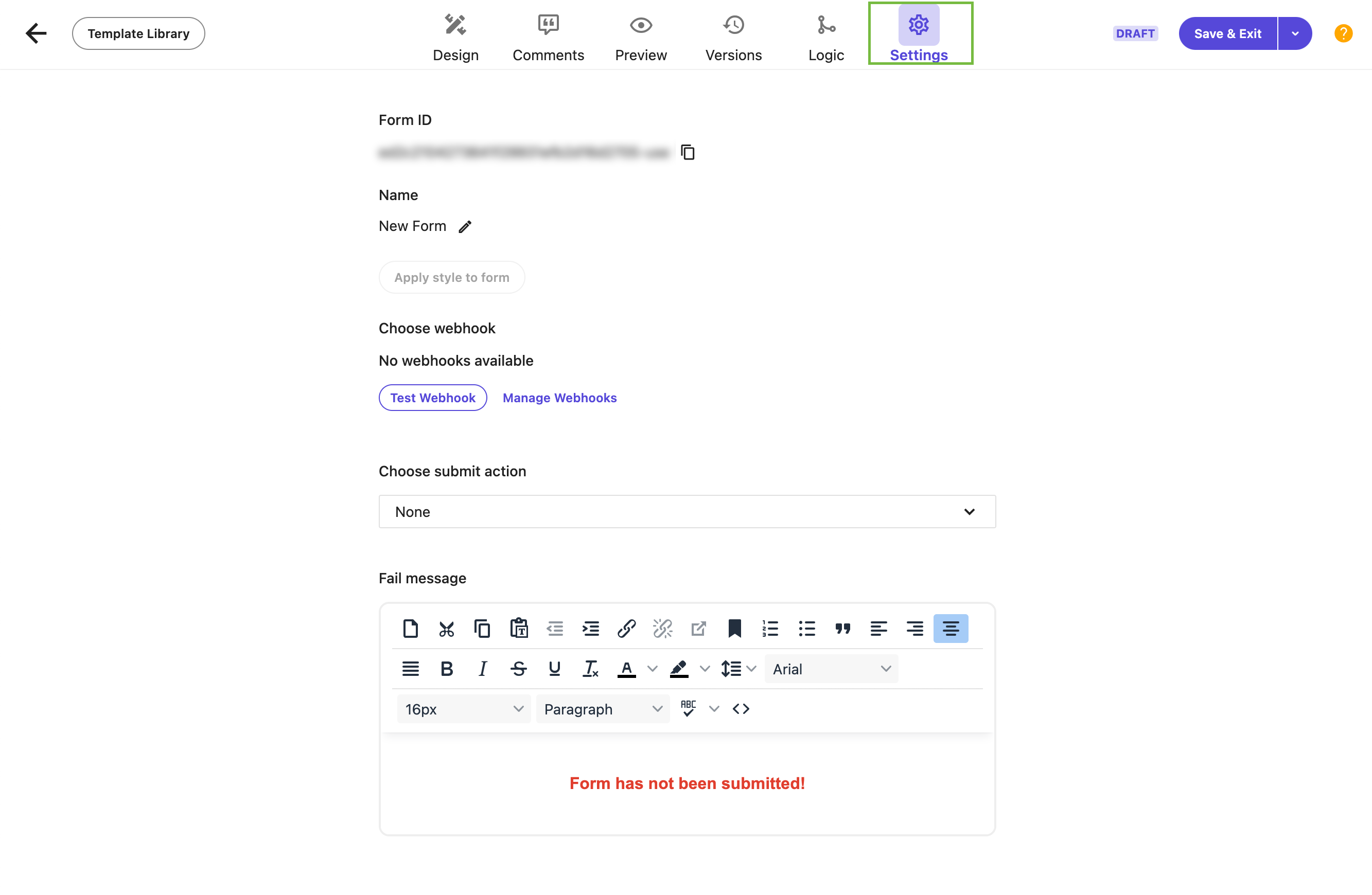
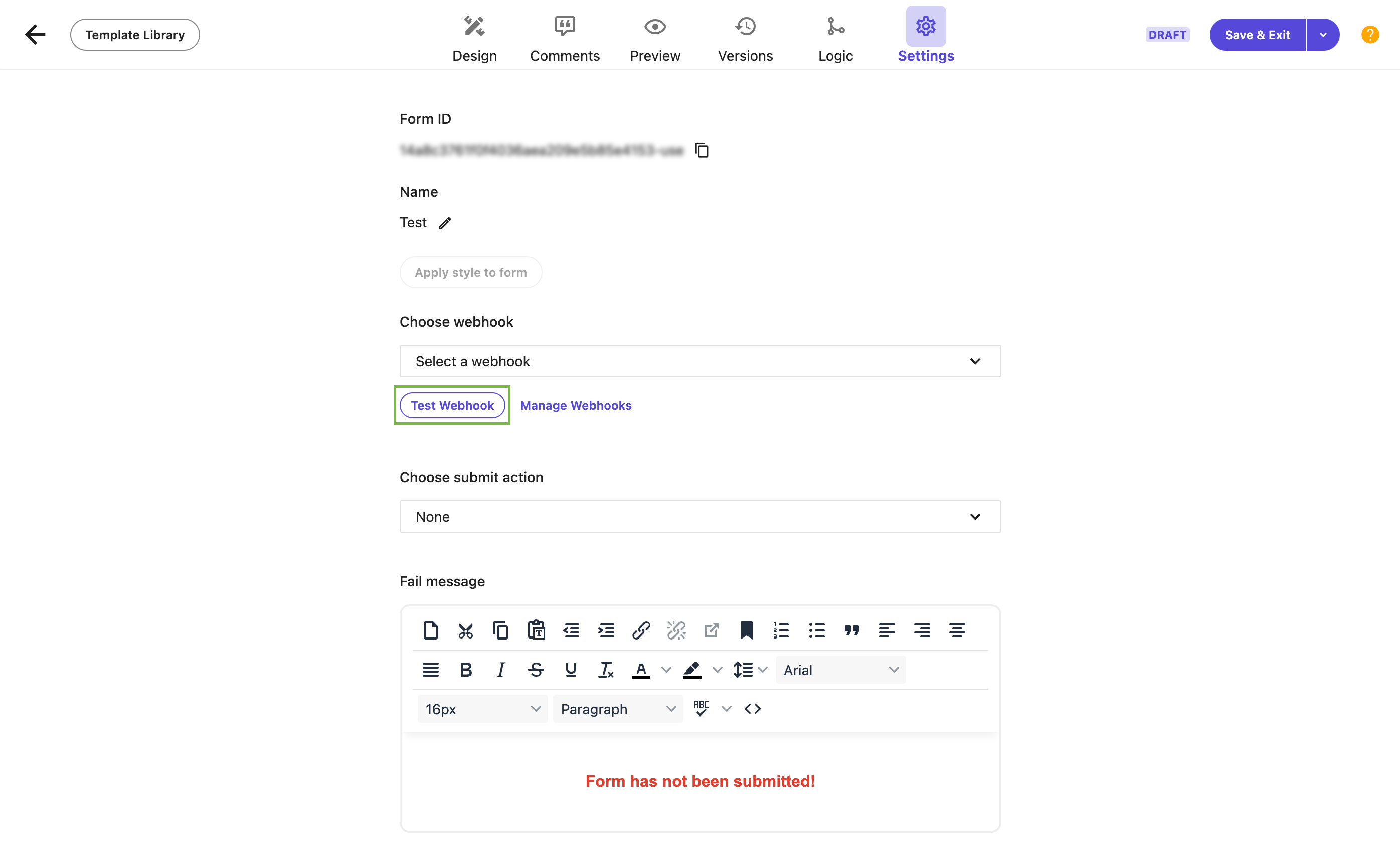
Navigate to the Choose webhook section of the Settings tab and click Test Webhook
button.
-
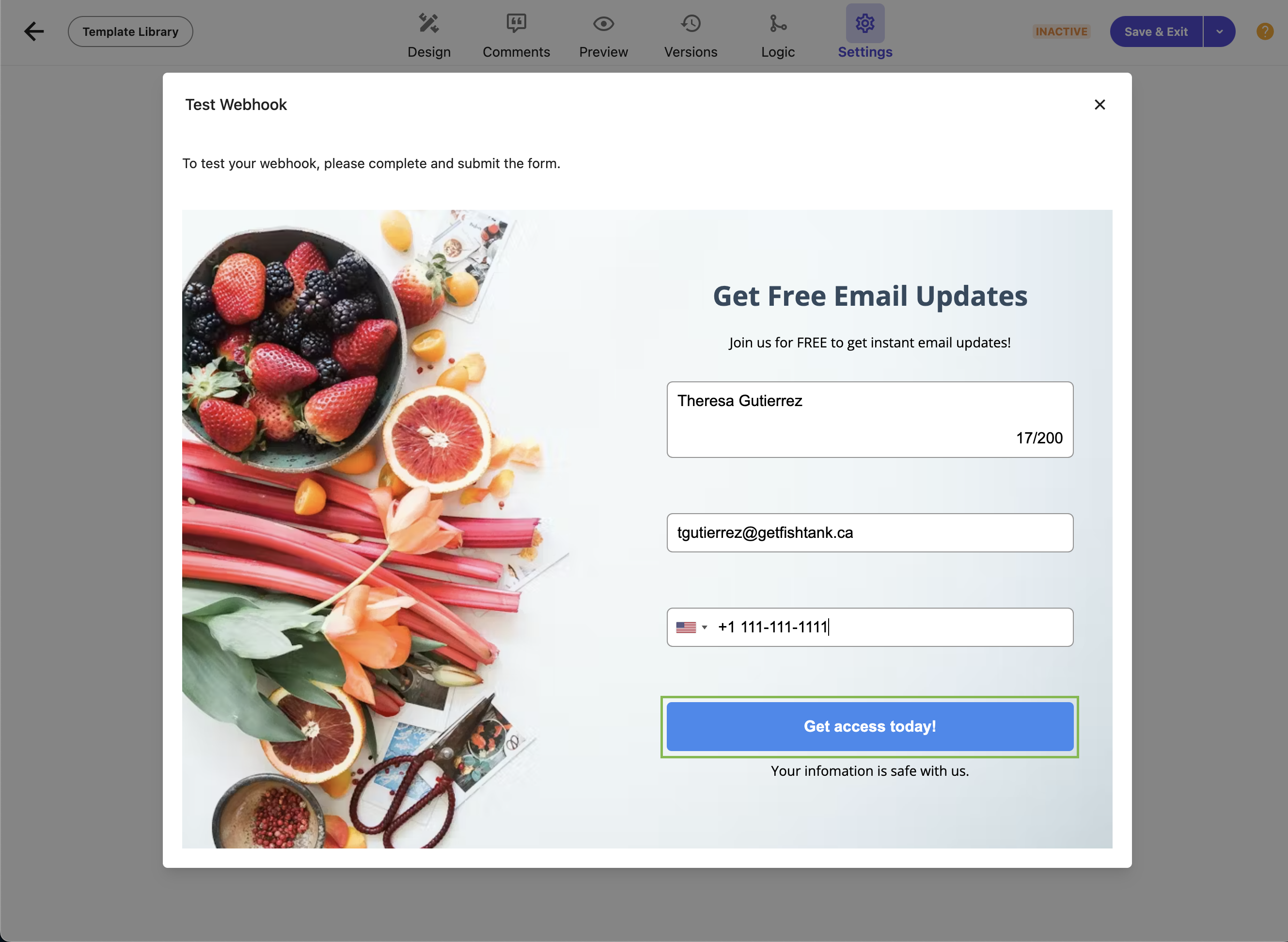
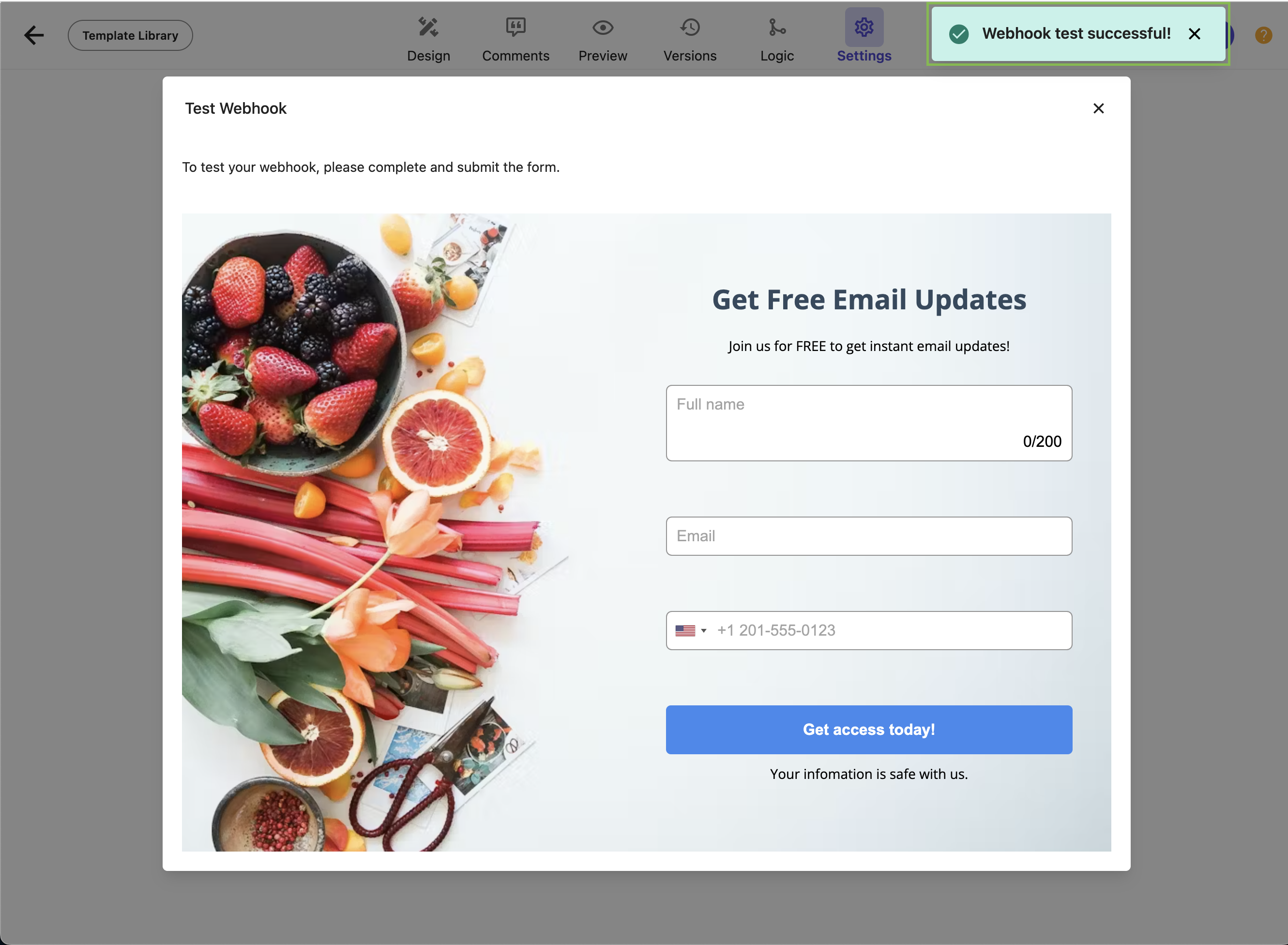
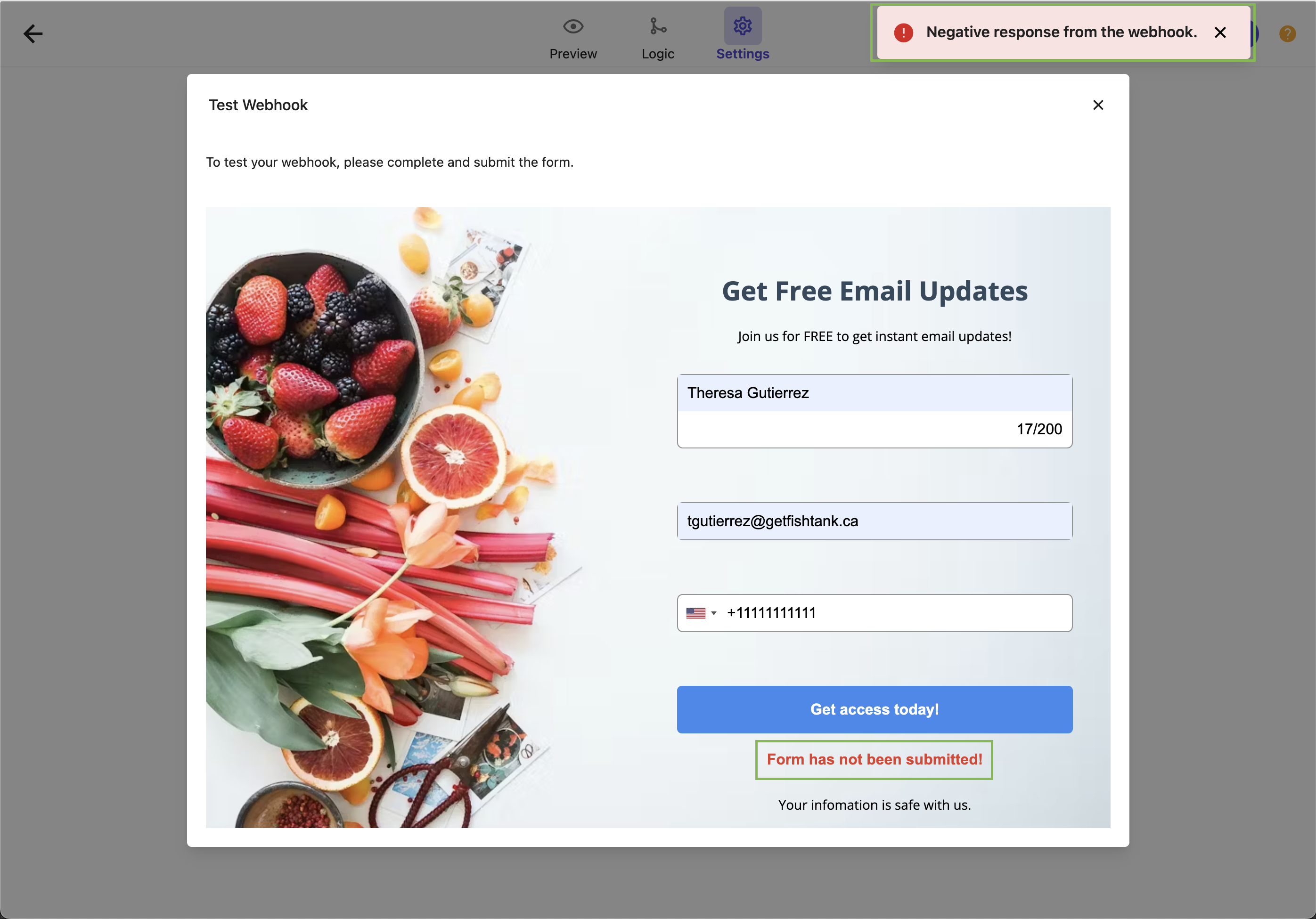
Here we can test our webhook by completing and submitting the form.
-
The following window will show us the results of our Test Form Submission. The two code snippets will show
the following:
-
After clicking Submit, we can see two outcomes a success test or a negative response from our webhook.
And there you have it! We have successfully created and tested our first webhook in XM Cloud Forms.
Now that we’ve covered how webhooks serve as a bridge between your XM Cloud environment and external systems,
enabling your Forms is a piece of cake. These dynamic and automated interactions can significantly enhance user
engagement and operational efficiency. By understanding and utilizing webhooks effectively, developers and marketers
can create more responsive and integrated digital experiences for their visitors.
Click here to read out our Intro to Sitecore XM Cloud Forms blog.
Until next time, happy form building!