Sitecore XM Cloud Marketplace Introduction
Sitecore recently introduced the Marketplace for XM Cloud, providing developers and partners with a flexible way to extend the platform through custom integrations.
The Marketplace SDK supports multiple integration points where custom apps can plug into the XM Cloud experience:
- Standalone – Cloud Portal Homepage
- Full Screen – XM Cloud Portfolio (Sites)
- Pages Context Panel – XM Cloud Page Builder
- Custom Field – XM Cloud Page Builder
- Dashboard Widgets – XM Cloud Dashboard
Create a Custom Table Field
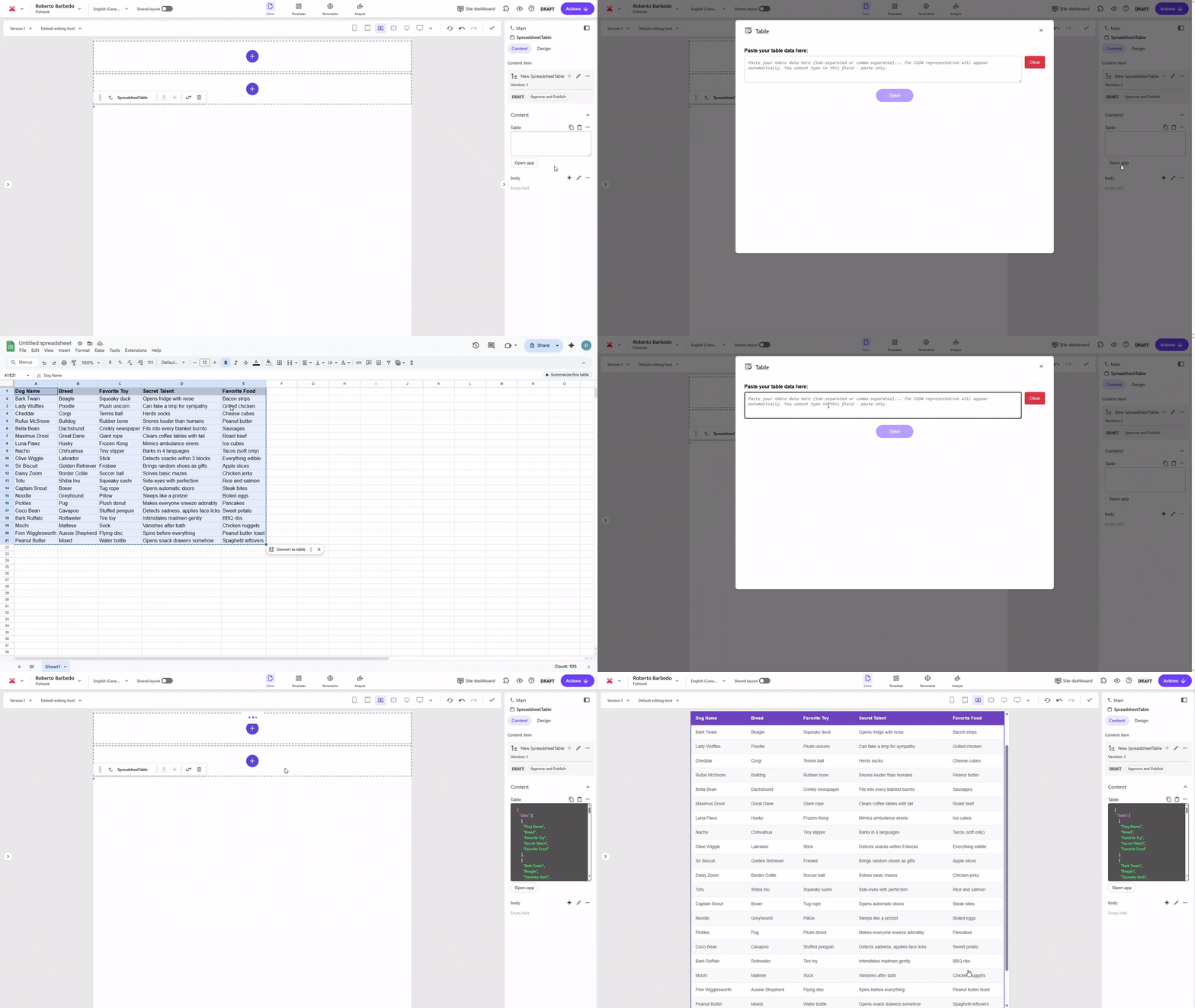
This guide focuses on #4 – Custom Field – XMC Page Builder, where we’ll create a custom field that allows content authors to copy and paste tables from a variety of sources — Excel, Google Sheets, or HTML tables from other sites.
Setting up a Marketplace App in XM Cloud
The first thing we need to do is to set up an app in XM Cloud.
1. Access the Developer Studio
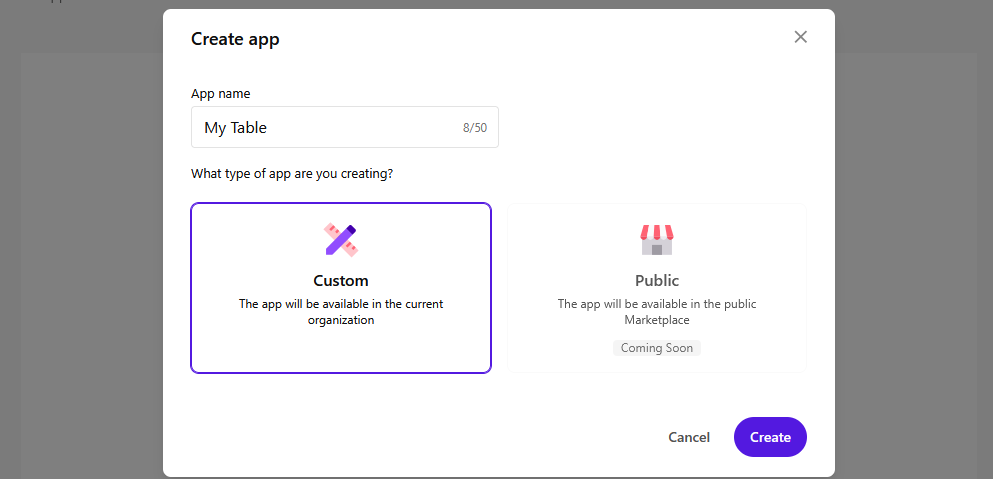
In the Sitecore Portal, open Developer Studio from the top navigation and click Create App.

2. Create the App
- App Name:
My Table
- Type:
Custom
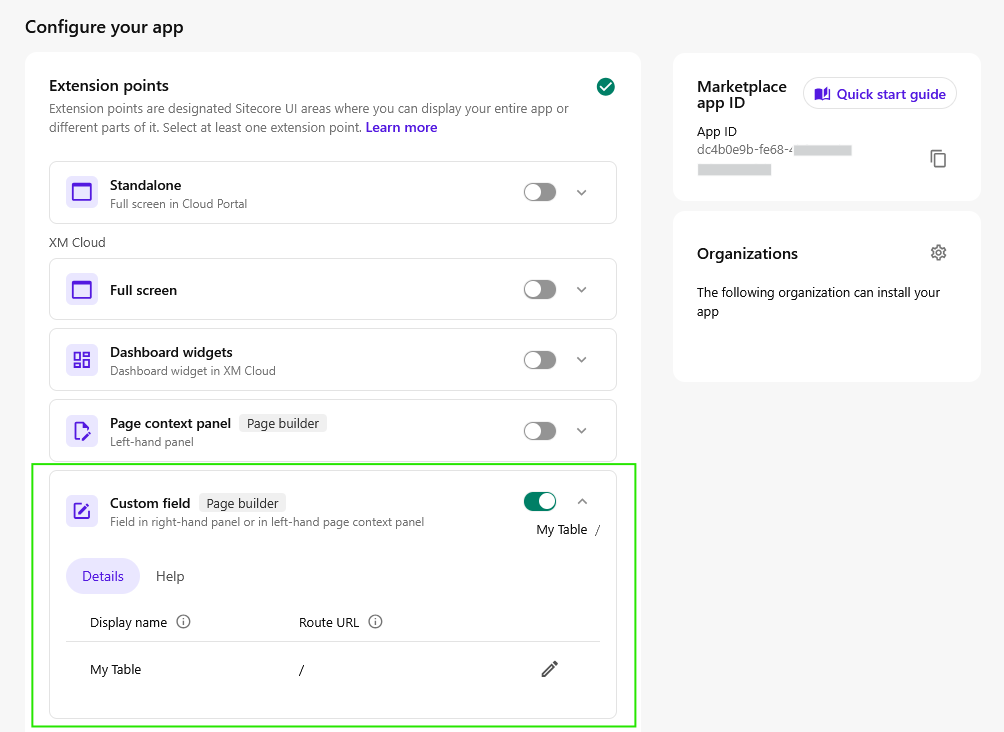
Once the app is created, click Configure App.
Under Extension Points, enable only Custom field.
Fill in:
- Display name:
My Table
- Route URL:
/
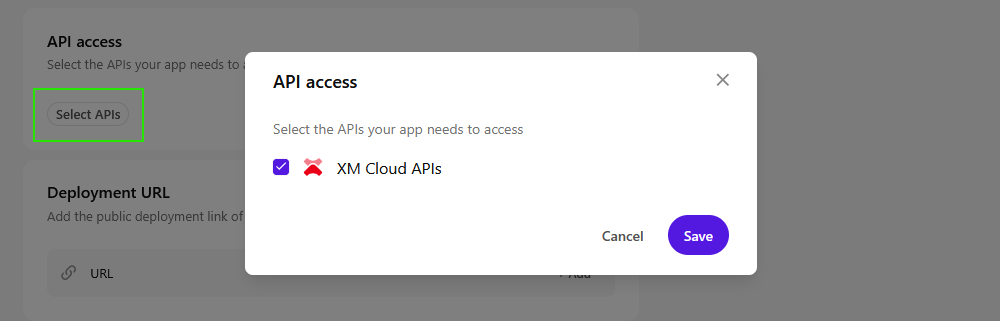
Under API Access, select XM Cloud APIs and click Save.
5. Add Deployment URL
For testing, you can use this public example app:
https://sitecore-xm-cloud-spreadsheet-table.vercel.app
You can replace this later with your own hosted application.
For local development, use: http://localhost:3000

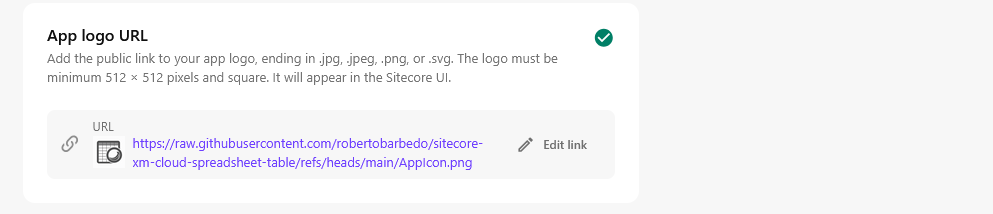
6. Add App Logo
Example logo URL:
https://raw.githubusercontent.com/robertobarbedo/sitecore-xm-cloud-spreadsheet table/refs/heads/main/AppIcon.png
7. Copy Marketplace App ID
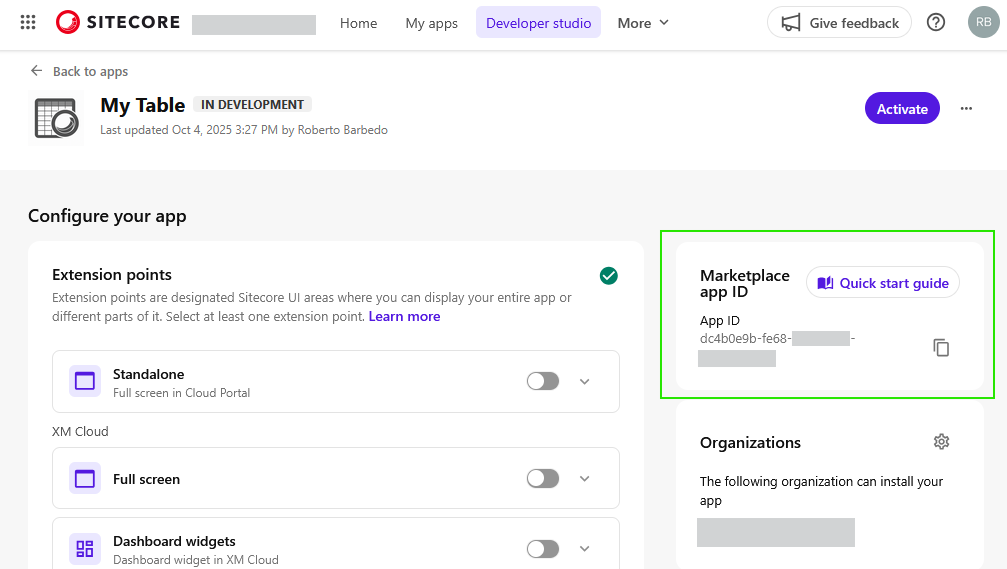
On the top-right corner, copy the Marketplace App ID — you’ll need it later when creating the field.
8. Activate the App
Click Activate to enable the app.

9. Install the App
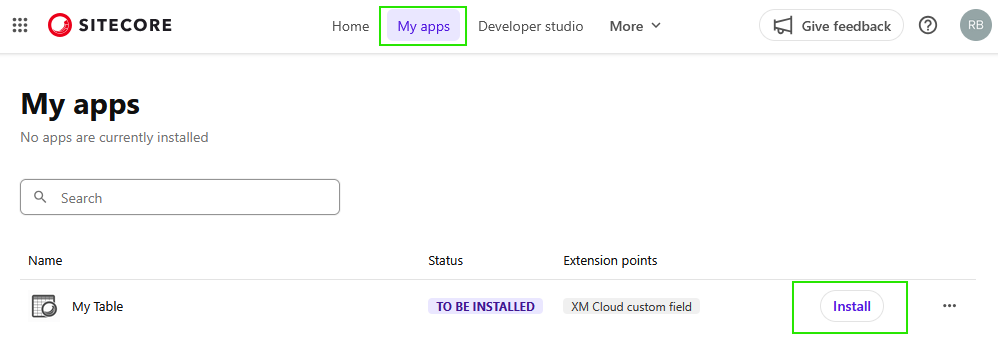
From Sitecore Portal’s top menu, go to My Apps → Install the Table App.
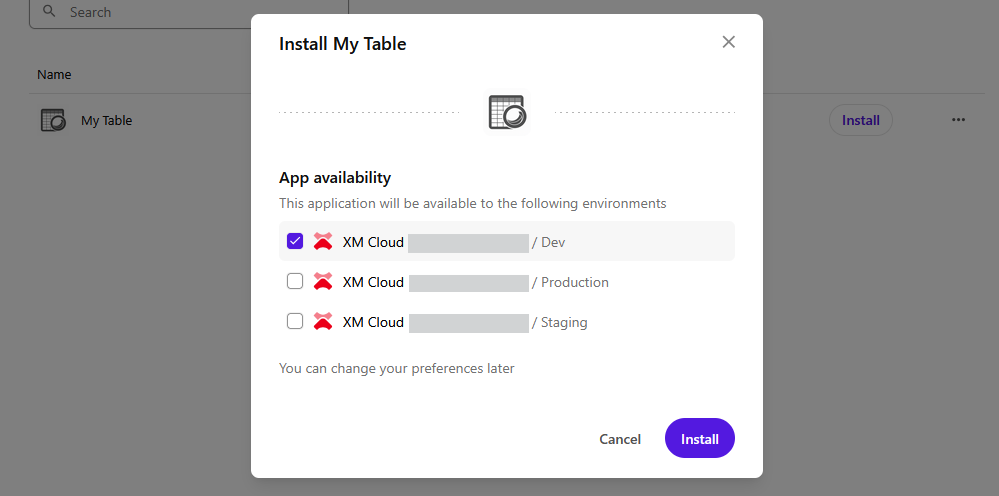
During installation, select the environments where this app should be available.
Creating the Field in Sitecore
Now that your Marketplace app is live, let’s create a field using the Table type.
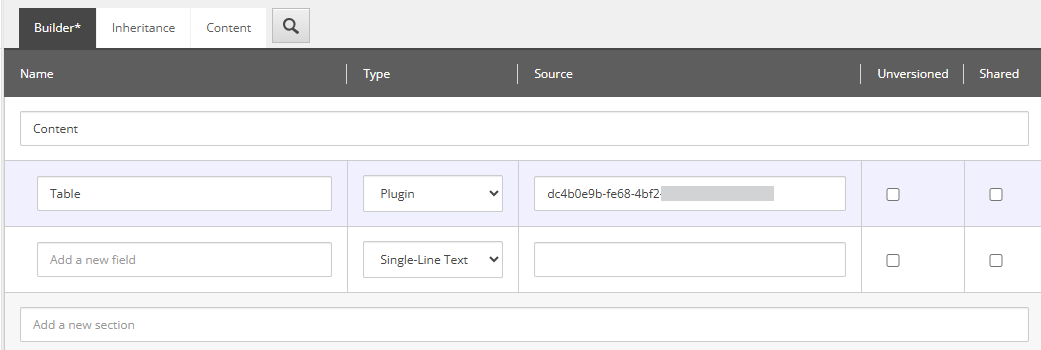
- In your component or page template, add a new field:
- Name:
Table
- Type:
Plugin
- Source: Paste the Marketplace App ID here
Using the Custom Table Field in Page Builder
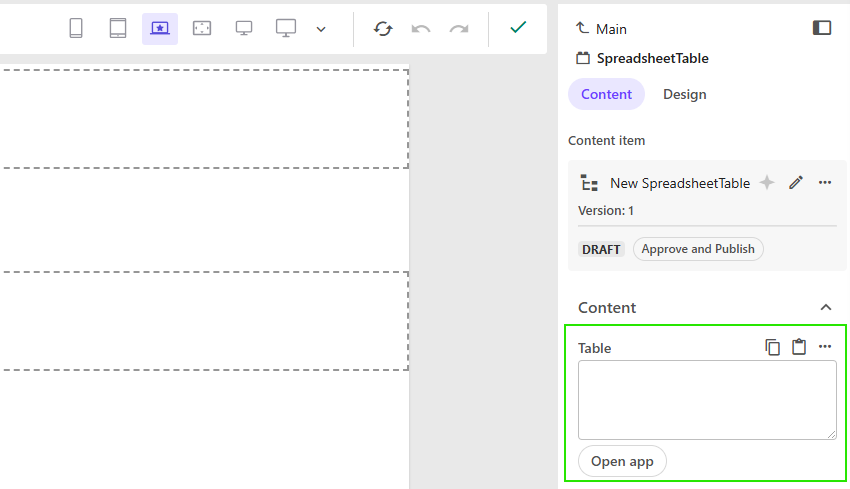
In Page Builder, open your component or page — you should now see the Table field available.
Click Open app to launch it.
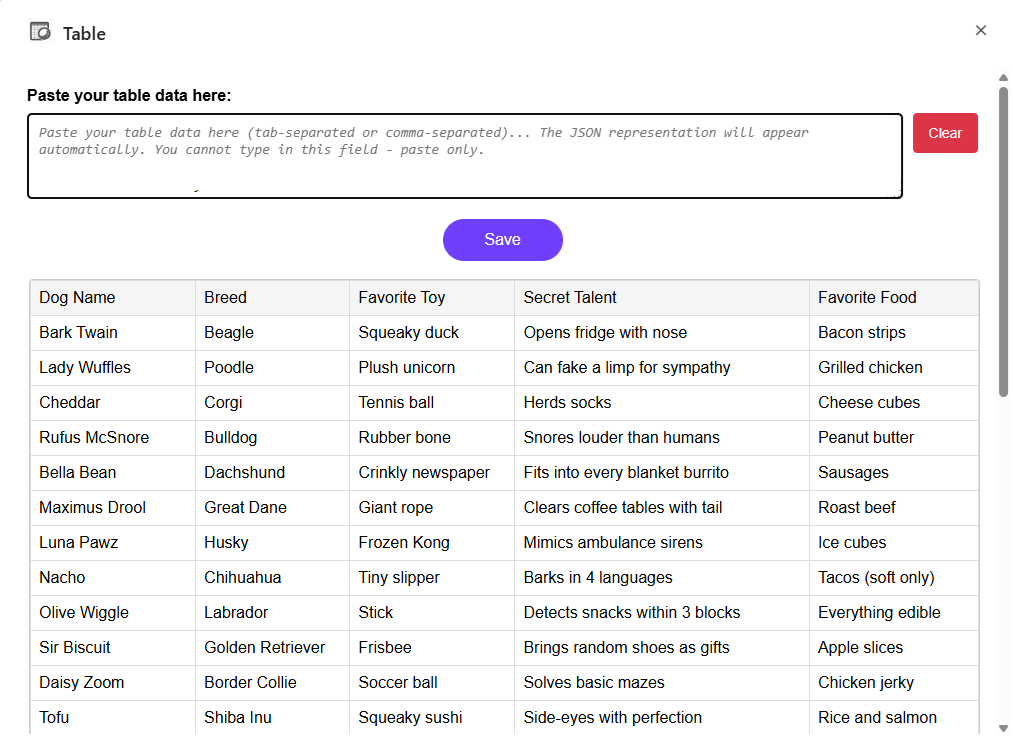
This custom field lets authors paste tables from multiple sources — Excel, Google Sheets, or even website HTML tables.
💡 Note: The dialog’s title uses the field name directly. At the time of writing, it doesn’t yet pull from Display Name or Field Title.
Creating Your Own Custom Marketplace Application
Sitecore provides great documentation for building Marketplace apps — see reference links at the end.
You can download the working Table application from my GitHub repo and host it yourself.
🔗 https://github.com/robertobarbedo/sitecore-xm-cloud-spreadsheet-table
In that repository, you’ll also find a SpreadsheetTable.tsx.sample component, which can be used to render the data from your custom Table field. This component is just a sample that you need to rename and add to your actual website head application.
If you want to start from scratch, use the official Marketplace Starter Kit:
🔗 https://github.com/Sitecore/marketplace-starter
Local Development Notes
When developing your custom Marketplace app, you won’t see it running standalone in a browser — it must be connected to an XM Cloud organization.
The good news is that you can point your app to http://localhost:3000 to test and debug it directly inside Page Builder, with live data.

The useMarketplaceClient Hook
In the Marketplace Starter Kit, you’ll find a helper called useMarketplaceClient.
This hook provides a convenient API for interacting with Page Builder — retrieving, saving, and closing your field data.
Example of some useful functions:
const { client, isInitialized } = useMarketplaceClient();
const existingData = await client.getValue();
client.setValue(dataToSave, true);
client.closeApp();
Integrating Custom Fields through the XM Cloud Marketplace is Straightforward and Powerful.
It opens up endless possibilities for delivering customized authoring experiences, while maintaining the same flexibility and control developers have always enjoyed in Sitecore.
With this approach, you can create tools that simplify authoring, streamline workflows, and empower editors — directly inside Page Builder.